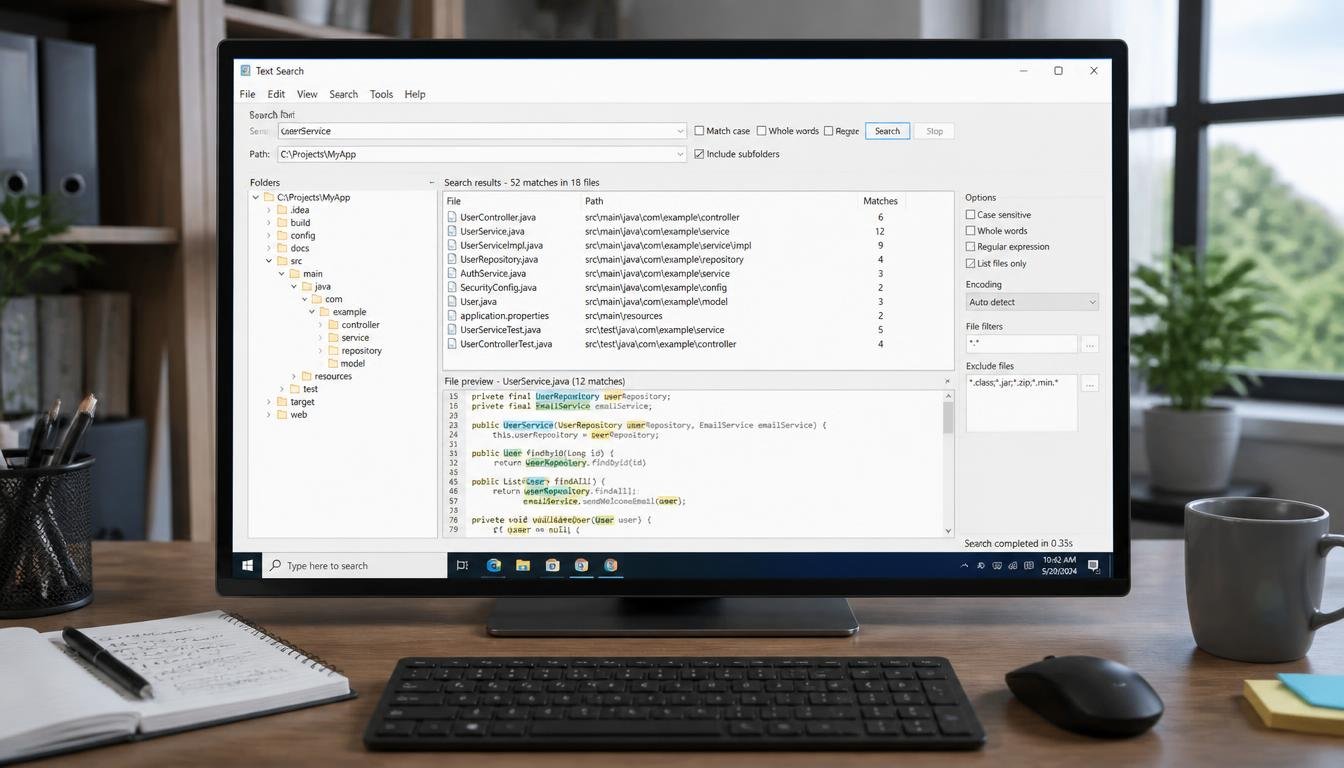
If you work with a large number of files on Windows, finding specific words, phrases, or code snippets can quickly become a frustrating task. Opening files one by one and using the standard search feature may work for small projects, but it becomes slow and inconvenient when you need to search through thousands of files.
This is where grepWin can be useful. It is a Windows-based search and replace utility designed to help users find text inside files and folders. Inspired by the classic grep command used on Unix-like systems, grepWin brings powerful text-search capabilities to a graphical Windows interface.
Whether you are a developer looking for a particular function in a codebase, a writer searching through documents, or an IT professional working with logs and configuration files, grepwin can make file searching much easier.
In this guide, we will explain what grepWin is, how the grepwin download process works, how to install and use the software, and which features can help you get better results. We will also cover regular expressions, search filters, replacement options, safety tips, and common mistakes beginners should avoid.
What Is grepWin?
grepWin is a free search and replace tool for Windows. Its primary purpose is to search for text within multiple files and directories at the same time.
The name comes from the combination of grep, a popular command-line search utility, and Windows. Traditional grep tools are powerful but often require users to work with command-line commands. grepWin provides a graphical interface, making similar search tasks easier for people who prefer a visual application.
With grepWin, you can search for:
- Simple words
- Complete phrases
- Text patterns
- Code snippets
- Regular expressions
- Specific file types
- Text within selected folders
- Case-sensitive or case-insensitive matches
The software can also be used to replace matching text across multiple files. This can save considerable time when making changes to large projects.
For example, suppose you have hundreds of HTML files and want to find every occurrence of an old company name. Instead of opening every file individually, you can search the entire folder with grepWin and identify matching files quickly.
Why Use grepWin?
Windows already has built-in search tools, so you might wonder why you need another application.
The main advantage of grepWin is that it focuses specifically on searching inside files rather than simply finding files by name.
Imagine you have a folder containing 5,000 files. You remember that one file contains the phrase “database connection failed,” but you do not remember the filename.
A normal file search may not help much. grepWin can scan the contents of files and show you where that phrase appears.
Some of its useful advantages include:
Search Multiple Files at Once
Instead of checking files individually, you can search an entire directory or a selected group of folders.
This is particularly helpful for:
- Software projects
- Website files
- Documentation
- Text archives
- Log files
- Configuration files
- CSV or XML files
Search by File Type
You do not always need to search every file in a folder.
If you are working on a programming project, for example, you might only want to search .php, .js, or .css files.
Filtering the search by file extension can reduce unnecessary results and make the process faster.
Support for Regular Expressions
Regular expressions allow you to search for patterns rather than exact words.
This is useful for advanced users who need to find variations of text. For example, instead of searching for one exact email address, you can create a pattern that identifies multiple email addresses.
Regular expressions can be complicated at first, but they become extremely useful once you understand the basics.
Find and Replace
grepWin is not limited to searching. It can also help replace matching text.
This feature is useful when updating:
- Website content
- Code variables
- Product names
- URLs
- Configuration values
- Repeated phrases
However, bulk replacement should always be handled carefully. A poorly designed search pattern can modify more files than intended.
How to Download grepWin
If you are looking for a grepWin download, it is best to obtain the software from a trusted and reputable source.
Before downloading any Windows application, check that you are using a reliable source. Avoid unfamiliar download websites that bundle programs with unwanted software or misleading installers.
When searching for grepWin, look for the official project or a well-established software distribution source. Check the version information and confirm that the download is compatible with your version of Windows.
A typical download process looks like this:
- Find the official grepWin project page or a trusted software source.
- Review the available version and system requirements.
- Download the appropriate installer or portable version.
- Save the file to your computer.
- Open the downloaded file and follow the installation instructions.
- Launch grepWin after installation.
- Start with a small test folder before performing large searches.
Depending on the distribution available at the time, you may find different versions or packages. Always verify what you are downloading before running an executable file.
Installing grepWin on Windows
After completing the grepWin download, the next step is installation.
The installation process is generally straightforward. Open the installer and follow the instructions displayed on the screen.
You may be asked to choose installation preferences or additional options. If you are unsure about a setting, the default configuration is usually a good starting point.
Once installation is complete, launch the application.
Before using advanced features, spend a few minutes becoming familiar with the main search interface. Understanding where to enter your search term, select the folder, and configure filters will make future searches much easier.
Some users may prefer a portable version if available. A portable application can be useful when you do not want to install software permanently or need to carry the utility between compatible computers.
How to Use grepWin for a Basic Search
A basic grepWin search is simple.
Suppose you want to find the word security inside a folder containing several documents.
You would generally:
- Open grepWin.
- Select the folder you want to search.
- Enter security as the search term.
- Choose the relevant file filters.
- Start the search.
- Review the results.
The software scans matching files and identifies where the text appears.
This approach is much faster than opening every file manually.
Example: Searching Website Files
Imagine you manage a website containing hundreds of HTML files. You want to find every page that contains an outdated phone number.
Instead of checking each page manually, you can search the website’s local files for the old number.
Once the results appear, you can review the affected files and determine which ones need to be updated.
This is one of the simplest and most practical uses of grepWin.
Understanding Search Filters
Search filters are important because they help you control which files are included.
If a folder contains images, videos, documents, source code, and system files, searching everything may create unnecessary results.
Instead, you can narrow your search.
For example, if you are looking for a JavaScript function, you might focus on:
- .js
- .jsx
- .ts
- .tsx
If you are searching website templates, you may focus on:
- .html
- .htm
- .php
Filtering can make searches easier to manage and reduce the amount of irrelevant information.
Include and Exclude Patterns
Advanced searches may involve both included and excluded file patterns.
For example, you might want to search all source code files but exclude:
- Backup directories
- Temporary folders
- Dependency directories
- Build output
- Cache folders
This approach is particularly helpful for developers working with large projects.
Case-Sensitive and Case-Insensitive Searches
Text can appear in different forms depending on capitalization.
For example:
- GrepWin
- grepWin
- grepwin
A case-sensitive search treats these as different strings.
A case-insensitive search may identify all of them.
If you are unsure how the text is capitalized, a case-insensitive search is often the better choice.
However, case-sensitive searches are useful when capitalization matters, particularly in programming languages where variable names may be case-sensitive.
Using Regular Expressions in grepWin
Regular expressions, often called regex, are patterns used to find specific types of text.
For beginners, regex can seem confusing. However, learning a few basic patterns can make grepWin much more powerful.
For example, you may want to find all numbers in a particular format rather than searching for one specific number.
Regular expressions can help identify patterns such as:
- Email addresses
- Phone numbers
- Dates
- File naming patterns
- Variable names
- Specific code structures
A simple regex might search for a word boundary to find an exact word instead of matching it as part of another word.
For example, searching for cat could potentially match words such as “catalog” depending on the search method. A more precise pattern can help you find only the standalone word.
Start Simple With Regex
If you are new to regular expressions, do not start with complicated patterns.
Begin with simple searches and gradually learn:
- Literal text matching
- Character classes
- Wildcards
- Word boundaries
- Repetition
- Groups
- Capturing patterns
Always test a regex against a small set of files before using it across an entire project.
Using grepWin for Find and Replace
One of the most useful features of grepWin is the ability to replace matching text.
Imagine a software project uses the variable name oldName in dozens of files. You decide to rename it to newName.
Rather than manually editing every file, you can search for the old name and replace it with the new one.
The general process is:
- Select the target directory.
- Enter the text you want to find.
- Enter the replacement text.
- Review the files that match.
- Confirm that the results are correct.
- Perform the replacement.
The most important step is reviewing the results before making changes.
Never assume that every match should be replaced automatically. A common word may appear in comments, documentation, code, or unrelated sections.

Safety Tips Before Bulk Replacement
Bulk replacement can save hours, but it can also cause problems if used carelessly.
Before replacing text across many files, follow these precautions:
Create a Backup
Make a backup of your project before performing a large replacement operation.
If something goes wrong, you can restore the original files.
Test on a Small Folder
Before changing hundreds of files, test the search and replacement process on a small sample.
This helps you confirm that your search pattern is correct.
Review the Matches
Look at the results before applying changes.
Ask yourself:
- Are these the files I expected?
- Are there unrelated matches?
- Is the replacement text correct?
- Could the search term appear in a different context?
Be Careful With Regular Expressions
A broad regex can match much more than expected.
If you are not completely confident about your pattern, test it first.
grepWin for Developers
Developers can benefit significantly from grepWin.
Large software projects often contain thousands of lines of code spread across many files. Finding a function, variable, class name, or error message can be difficult without a reliable search tool.
grepWin can help developers:
- Locate function names
- Find variable references
- Search error messages
- Identify outdated code
- Find configuration settings
- Search comments
- Locate hardcoded text
- Update repeated strings
For example, if an application displays a specific error message, you can search the entire project for that message and quickly identify the source file responsible for it.
This can be particularly useful when working with older projects that do not have clear documentation.
grepWin for Website Owners
Website owners and content managers can also use grepWin.
Suppose you have a locally stored website and need to update an old link across hundreds of pages.
You could search for the old URL and identify every file where it appears.
Other useful tasks include:
- Finding broken or outdated URLs
- Updating contact information
- Replacing old brand names
- Finding tracking codes
- Locating analytics snippets
- Checking repeated HTML elements
- Searching SEO-related text
For website migrations, grepWin can be helpful when you need to locate old domains or URLs in local website files.
However, always make a backup before making bulk changes.
grepWin vs Traditional Windows Search
Windows Search is useful for finding files, applications, and basic content. However, grepWin is more focused on searching text within files.
The right choice depends on your needs.
Use standard Windows Search when you need to:
- Find a file by name
- Locate recently modified documents
- Search basic file metadata
Consider grepWin when you need to:
- Search text inside many files
- Filter searches by extensions
- Use regular expressions
- Replace text across multiple files
- Search large codebases
- Perform detailed content searches
For advanced text-based file searching, grepWin can provide a more focused workflow.
Tips for Getting Better Search Results
Getting useful results is not only about entering a search term. The way you configure your search can make a major difference.
Use Specific Search Terms
Instead of searching for a common word such as data, use a more specific phrase when possible.
For example, searching for:
database connection failed
may produce more useful results than searching for:
failed
Narrow the Folder
Search only the folder that is relevant to your task.
Searching your entire hard drive may create unnecessary results and take longer.
Use File Filters
If you know the file type you need, use it.
This can significantly reduce irrelevant results.
Start With Simple Searches
Try a normal text search before moving to regular expressions.
This makes troubleshooting easier if your results are not what you expected.
Review Before Replacing
Search first. Replace second.
This simple habit can prevent accidental changes.
Common grepWin Mistakes to Avoid
Even experienced users can make mistakes when searching large collections of files.
Here are some common problems.
Searching the Wrong Directory
Always confirm that you selected the correct folder.
If you search the wrong directory, you may think the software is not working when the required files are simply somewhere else.
Using Too Broad a Search
Common words can generate thousands of results.
Try to use a unique phrase or a more specific pattern.
Forgetting File Filters
If you only need to search source code, there is little reason to scan unrelated files such as images or large archives.
Replacing Without a Backup
Never perform large-scale replacements without a backup or another way to restore your files.
Using Regex Without Testing
Regular expressions are powerful but can be difficult to predict if you are unfamiliar with them.
Test carefully before applying changes.
Is grepWin Suitable for Beginners?
Yes. Although grepWin includes advanced features, beginners can start with basic text searches.
You do not need to understand regular expressions to use the core search functionality.
A good learning approach is to begin with:
- Select a small folder.
- Search for a simple word.
- Experiment with file filters.
- Try a phrase.
- Explore case sensitivity.
- Learn regular expressions later.
- Test replacement features only after understanding search results.
This gradual approach makes the software easier to learn without overwhelming yourself with advanced options.
How to Choose a Safe grepWin Download
When downloading any software, safety should be a priority.
Keep these tips in mind:
- Use the official project source whenever possible.
- Check that the software name and publisher are correct.
- Avoid suspicious download buttons.
- Be cautious with third-party installers.
- Scan downloaded files if you have concerns.
- Keep your Windows security tools updated.
- Avoid installing additional software you do not need.
It is also wise to check the version information before downloading. Software projects can change over time, and the latest version may include improvements or bug fixes.
FAQs
What is grepWin used for?
grepWin is used to search for text inside multiple files and folders on Windows. It is especially useful for developers, website owners, writers, and anyone who needs to locate specific text across many files.
Is grepWin free?
grepWin is generally available as a free utility. However, users should always check the current licensing and download information from the official project source before installing it.
Can grepWin search multiple files?
Yes. One of the main purposes of grepWin is searching through multiple files within selected directories. You can also use file filters to narrow down the search.
Does grepWin support regular expressions?
Yes. grepWin supports regular-expression-based searching, which allows advanced users to find patterns instead of only exact text.
Can I replace text using grepWin?
Yes. grepWin can be used for find-and-replace operations across multiple files. Because bulk replacement can change many files at once, you should always review matches and create a backup first.
Is grepWin difficult to use?
The basic search functionality is relatively easy to understand. Advanced features such as regular expressions may require some practice, but beginners can use grepWin effectively without learning every feature.
Is grepWin useful for programming?
Yes. Developers can use it to search source code for function names, variables, error messages, configuration values, and other text. It can be especially helpful when working with large projects.
Should I back up files before using grepWin?
You should definitely create a backup before performing large find-and-replace operations. Basic searches do not normally modify files, but bulk replacements can make widespread changes.
Conclusion
For anyone who frequently searches through large collections of files on Windows, grepWin can be a practical tool. It combines the power of text-based search with a graphical interface that is easier for many Windows users to understand.
The basic search features are useful for beginners, while options such as file filtering, regular expressions, and bulk replacement provide additional flexibility for advanced users.
If you are considering a grepWin download, focus on obtaining the software from a trusted source and verifying the version before installation. Once installed, start with simple searches and gradually explore more advanced features.
The most important lesson is to use search carefully and replacement cautiously. A well-planned search can save hours of manual work, while a careless bulk replacement can create unnecessary problems. By using specific search terms, applying sensible file filters, testing regular expressions, and keeping backups, you can make grepWin a valuable part of your Windows workflow.
Whether you are maintaining a website, managing documents, analyzing logs, or working on a large software project, learning how to search efficiently can save significant time. With the right approach, grepWin provides a straightforward way to find the information you need without opening files one by one.
Leave a Reply